
What wake locks are and how they drain battery
Wake locks let Android apps keep the processor awake after the screen turns off. Used badly, they can stop a phone from reaching low-power sleep and cause heavy standby drain.
You’re asleep. Your phone screen is off. Nothing is playing, nothing is downloading, and the battery still drops 18% overnight.
That is the kind of drain wake locks can cause. A wake-lock request keeps part of the device awake when Android would otherwise let it sleep. The most common battery problem is a partial wake lock, which keeps the processor running while the screen stays off.
Wake locks are not automatically bad. A music app needs a lock to keep audio playing. A navigation app may need one during an active trip. A user-started upload may need to finish instead of dying halfway through. The problem starts when an app holds one too long, asks for one too often, or fails to release it after the work is done.
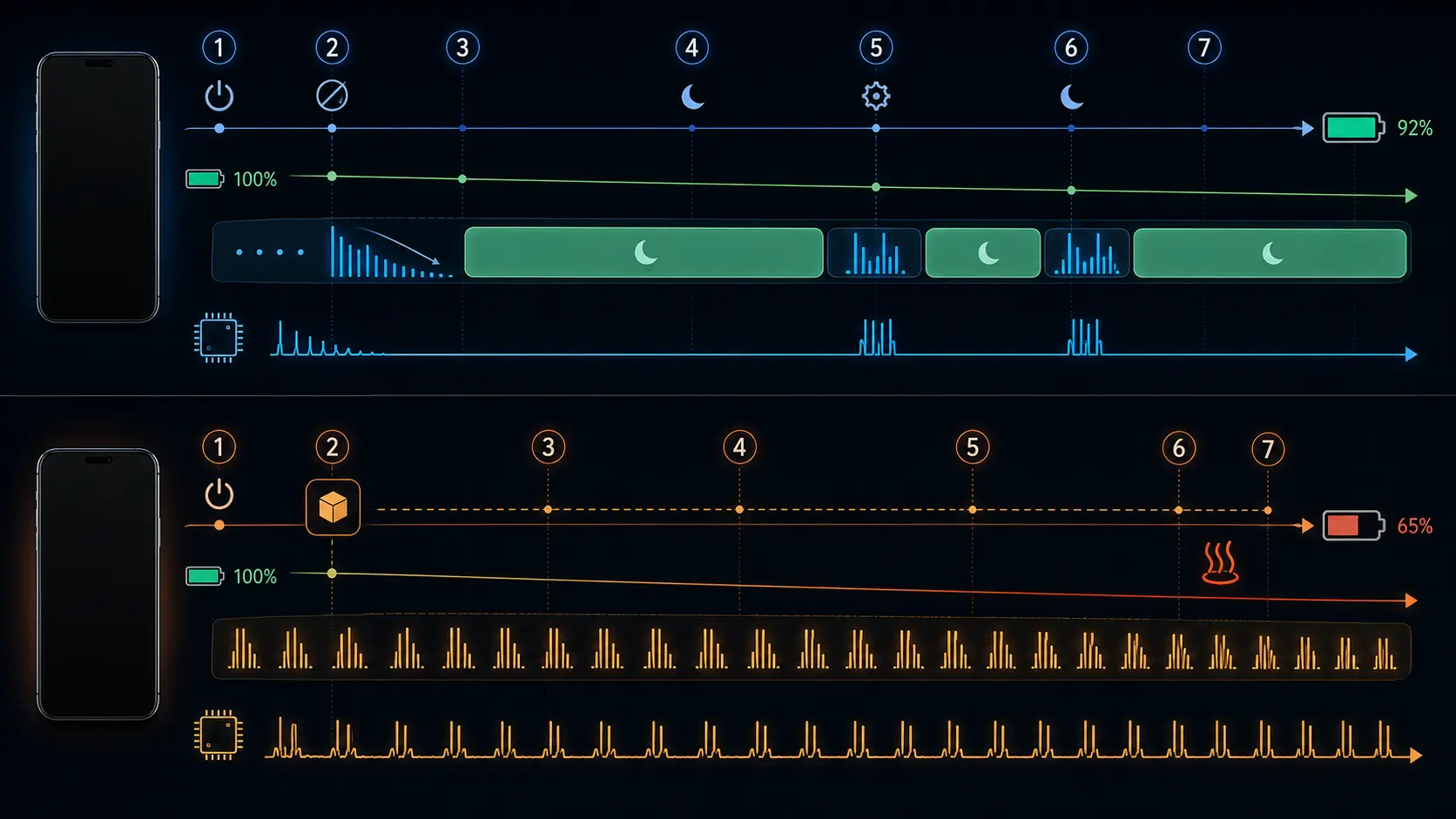
How wake locks work
When the screen turns off, Android tries to suspend the CPU and let the phone enter low-power states. If an app still has work that should continue, it can acquire one through Android’s PowerManager API. When the work is finished, the app releases the lock and the phone can sleep again.
That handoff is where things go wrong.
An app might start a background sync, hit a network timeout, and fail to clean up properly. Another app might poll a server every few minutes instead of using push notifications. A fitness app may keep sensors and processing active longer than needed. To the user, the phone looks idle. Inside, it is not idle at all.
Since March 1, 2026, this has also mattered more for developers. Google Play can reduce the visibility of apps that cross the Android vitals threshold for excessive partial wake locks. Android vitals counts non-exempt partial locks as excessive when they add up to 2 or more hours in a 24-hour period, and the bad-behavior threshold is more than 5% of app sessions over 28 days.
Why wake lock drain is hard to spot
Wake lock drain often hides behind system labels. The battery screen may show Android System, Google services, or vague background use instead of naming the exact wake lock that caused the problem.
Start with the basics anyway. Go to Settings > Battery > Battery usage and check which apps drew power in the background. On recent Pixel builds, tap an app and open App battery usage. On Samsung, check Settings > Battery and device care > Battery, then review app use and background limits.
If the phone loses a lot of charge while the screen is off, but the battery screen doesn’t show an obvious app, wake locks become a stronger possibility.
The old dialer code *#*#4636#*#* is not a dependable solution anymore. It works on some Android phones, does nothing on others, and often lacks useful battery detail on newer Samsung and Xiaomi devices. I wouldn’t build a troubleshooting process around it.
For deeper checks, use ADB. adb shell dumpsys batterystats can show wake lock history and time held awake, though the output is not friendly. Tools like BetterBatteryStats and GSam Battery Monitor can help, but many advanced battery tools need ADB-granted permissions or extra setup on modern Android. If an app promises instant battery miracles with no permissions and no data, be skeptical.
Common wake lock culprits
Google Play services gets blamed often because that service handles a lot: location, push messaging, account sync, nearby services, security checks, and more. Some wake lock time from it is normal. Runaway drain from it after a system update, broken sync, or corrupted cache is not.
Social apps can also be noisy. They refresh feeds, upload analytics, sync messages, update widgets, and keep notification pipelines alive. A social app you open twice a week doesn’t deserve unrestricted background access.
Email apps are another one. Push email is usually fine. Polling every few minutes is wasteful, especially across several accounts.
VPNs, music apps, navigation apps, and fitness trackers are different. Their wake locks may be expected because the user asked them to keep doing something. The right question is not “does this app keep the phone awake?” It is “does it keep doing that when I am not actively using its core feature?”
What you can do
Restrict background access for apps that don’t need it. On Pixel and stock Android, go to Settings > Apps > [app name] > App battery usage and choose Restricted. On Samsung, use Sleeping apps or Deep sleeping apps under Background usage limits.
Don’t restrict apps that need real-time background behavior. Messaging, VPN, health, navigation, emergency, and work-critical apps can break in subtle ways if you freeze them too hard.
For that service, start gently. Restart the phone. Check for Google Play system updates and app updates. If drain continues, clear the Play services cache under Settings > Apps > Google Play services > Storage & cache > Clear cache. Avoid clearing all data unless you know what it affects, because it can reset local service state and cause temporary sync churn.
If the problem started right after an Android 17 update, give the phone a day or two before drawing conclusions. Pixels received Android 17 first, and phones often run extra indexing, app optimization, and update cleanup after a major OS upgrade. Persistent drain after several days is different.
How Doze changes the picture
Doze helps limit wake lock damage during deep idle. While the device is in Doze, Android ignores wake locks during the restricted phases and allows work mainly during maintenance windows.
But Doze is not magic. Apps exempted from battery optimization get more freedom. Foreground services can still keep doing work. Manufacturer battery layers may behave differently. And if the phone never settles into idle because of movement, signal problems, or repeated background activity, you won’t get the full benefit.
This is why overnight drain is such a useful clue. If your phone sits still for seven hours and loses 4%, you probably don’t have a major wake lock issue. If it loses 20% with the screen off and no active media, something is holding it awake or forcing the radio to work.
runcheck is built for that kind of pattern matching. Screen-off drain, deep sleep behavior, signal quality, and temperature tell a much clearer story together than the default battery screen does alone.
A few questions worth answering
Can one keep the screen on? Partial locks don’t. They keep the CPU running while the display stays off. Older screen wake lock types exist, but modern Android apps are heavily constrained there. Most hidden drain comes from these partial CPU locks.
Is some wake lock activity normal? Yes. A clean Android phone still has short wake locks from system services, push messages, connectivity changes, and scheduled work. Minutes are normal. Hours during idle use are not.
Will a factory reset fix it? Sometimes. It can clear bad app state, broken sync, and messy update leftovers. It is also a blunt tool. Restrict suspicious apps, update everything, clear cache where appropriate, and confirm the pattern before wiping the phone.
Sources
Turn symptoms into a clearer picture of your phone's health.
runcheck connects battery, heat, signal, and storage patterns so you can see what is really dragging a phone down.