
Why your phone battery drains so fast: a practical Android diagnostic guide
Fast battery drain has a cause. It may be a boring one, like screen brightness or poor signal, but it isn't random.
The fastest way to waste time is changing ten settings at once and hoping one of them helps. Diagnose first. Then fix the thing that is actually draining power.
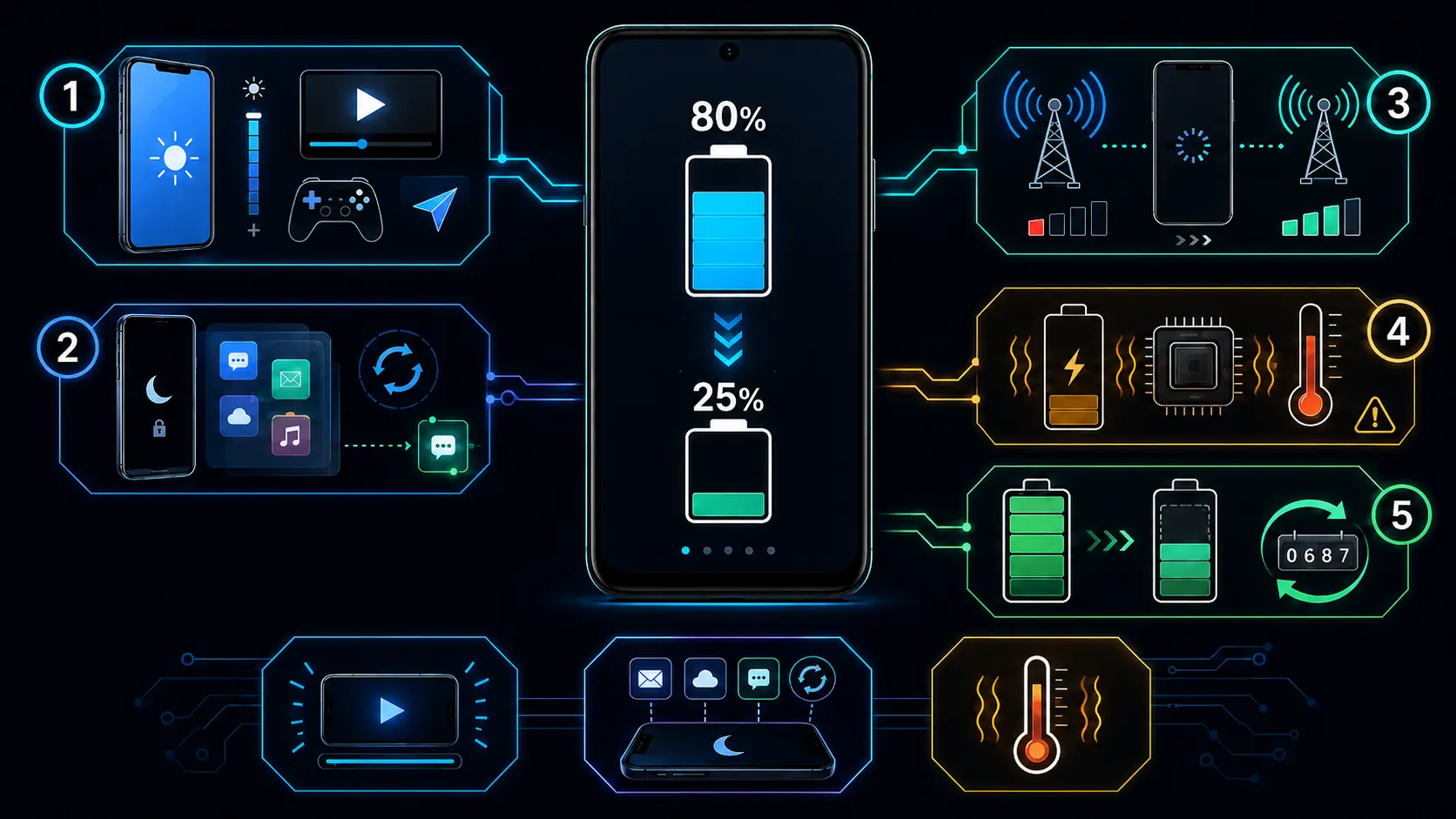
Start with the obvious checks
Open Settings > Battery > Battery usage. Look at which apps used the most power since the last full charge, and separate active use from background use in your head.
A navigation app at the top after a long drive is normal. A shopping app, weather app or social media app near the top when you barely opened it is more suspicious. Tap the app and check whether Android lets you restrict its background battery use.
Then check the screen. High brightness, always-on display, long screen timeout and high refresh rate are easy battery drains. The display is still one of the biggest power users on any phone, and no setting tweak beats simply turning the brightness down when you don’t need it.
Also think about timing. Did the drain start after a system update, a new app, a new smartwatch, a travel day, or a change in network coverage? Battery problems that start on a specific day often have a specific trigger.
The causes that matter most
Background apps are the usual suspects. Messaging, social media, shopping, fitness, smart home and news apps can sync, wake the CPU, check location, and maintain network connections while the screen is off.
Wake locks are one technical reason this happens. A partial wake lock keeps the CPU running even when the screen is off. Google Play started treating excessive wake locks more seriously in 2026, including possible Store visibility limits and warning labels for apps that cross the bad-behavior threshold. That won’t fix your battery today, but it tells you the problem is real enough for Google to punish it.
Weak signal is another big one. When cellular coverage is poor, the modem raises power and keeps searching. Mixed 5G and 4G coverage can be especially annoying because the phone may keep switching between network types. If your battery tanks at work but not at home, signal strength deserves a hard look.
Location can drain more than people expect. High-accuracy location, frequent updates and background tracking all cost power. A weather widget does not need your exact location every few minutes. A fitness tracker might. Treat those permissions differently.
Battery wear is the hardware side. A two or three year old phone may be down near 80% health, which means every percentage point represents less actual energy than it used to. No setting can make a worn 4,000 mAh battery behave like a new 5,000 mAh battery.
System updates can cause short-term drain too. This matters right now because Android 17 started rolling out to supported Pixel devices in June 2026, while other Android makers are still moving on their own schedules. After a major Android update, the phone may optimize apps, rebuild caches and resync data. If battery life is worse for a day or a few days after the update, that can be normal. If it is still bad after that, start investigating.
Measure the kind of drain
There are two different problems: active drain and idle drain.
Active drain is what happens while you are using the phone. If you play a 3D game, record video, stream over mobile data, or use navigation at full brightness, the battery will drop fast. That is expected.
Idle drain is more useful for diagnosis. Charge to a known level, leave the phone untouched with the screen off, and check it later. A healthy Android phone should lose only a few percent overnight. If it loses a large chunk while sitting still, something is keeping it awake.
Use Airplane mode to split the problem in half. Turn on Airplane mode, turn Wi-Fi and Bluetooth off, lock the phone, and leave it for at least 30 minutes. If drain drops hard, the problem is probably network-related. If drain stays high, look for local causes: an app, a system loop, or battery hardware.
Safe Mode is the next step when you suspect an app but can’t find it. Safe Mode disables third-party apps. If drain improves there, one of your installed apps is the culprit. It is not glamorous troubleshooting, but it works.
Fixes that usually work
Restrict the worst background apps first. Go to Settings > Apps > the app > Battery, then choose the stricter background option your phone offers. The exact wording varies by brand.
Update Android and your apps. That sounds dull because it is. It also fixes real battery bugs.
Tighten location permissions. Set apps to Allow only while using the app unless they truly need background location. Fitness tracking, family safety and navigation may need more access. A coupon app probably doesn’t.
Try LTE-only mode in weak 5G areas if your phone and carrier allow it. You may lose peak speed, but you can gain battery life in places where 5G coverage is inconsistent.
Use Battery Saver earlier. Don’t wait until 5%. If a phone regularly dies before evening, enabling Battery Saver at 30% is more useful than being stubborn.
Check battery health. On Pixel 8a and later, use Settings > Battery > Battery health. On Samsung, use Samsung Members > Support > Phone diagnostics > Battery status. On other Android phones, the path varies, and you may need a diagnostic app that estimates capacity over several charge sessions.
When to stop troubleshooting
There is a point where settings work becomes denial.
If battery health sits below 80%, idle drain looks normal, and the phone still can’t last through your day, replace the battery or replace the phone. If the phone gets hot while doing basic tasks, shuts down under load, or the battery is swollen, stop chasing app settings and get the hardware checked.
A factory reset can help when software is truly broken, especially after years of app installs and backup restores. It should be a last resort. Back up first, reset, and test the phone before restoring every app back onto it. Otherwise you may reinstall the same problem.
runcheck helps by putting battery health, temperature, signal strength and storage condition in one place. That matters because drain often has more than one cause. A phone with poor signal, high background app activity and a warm battery will look like a battery problem, even when the cell is only part of the story.
Don’t replace the phone before you diagnose it. But don’t keep diagnosing forever when the cell has simply worn out.
Sources
Turn symptoms into a clearer picture of your phone's health.
runcheck connects battery, heat, signal, and storage patterns so you can see what is really dragging a phone down.