
What is a proximity sensor and why does it matter?
How the proximity sensor in your Android phone works, why calls misbehave when it fails, and how to test and fix common proximity sensor problems.
Halfway through a call, the screen wakes up against your face and your cheek opens the keypad. That’s usually this tiny sensor failing at the one job nobody notices until it stops working.
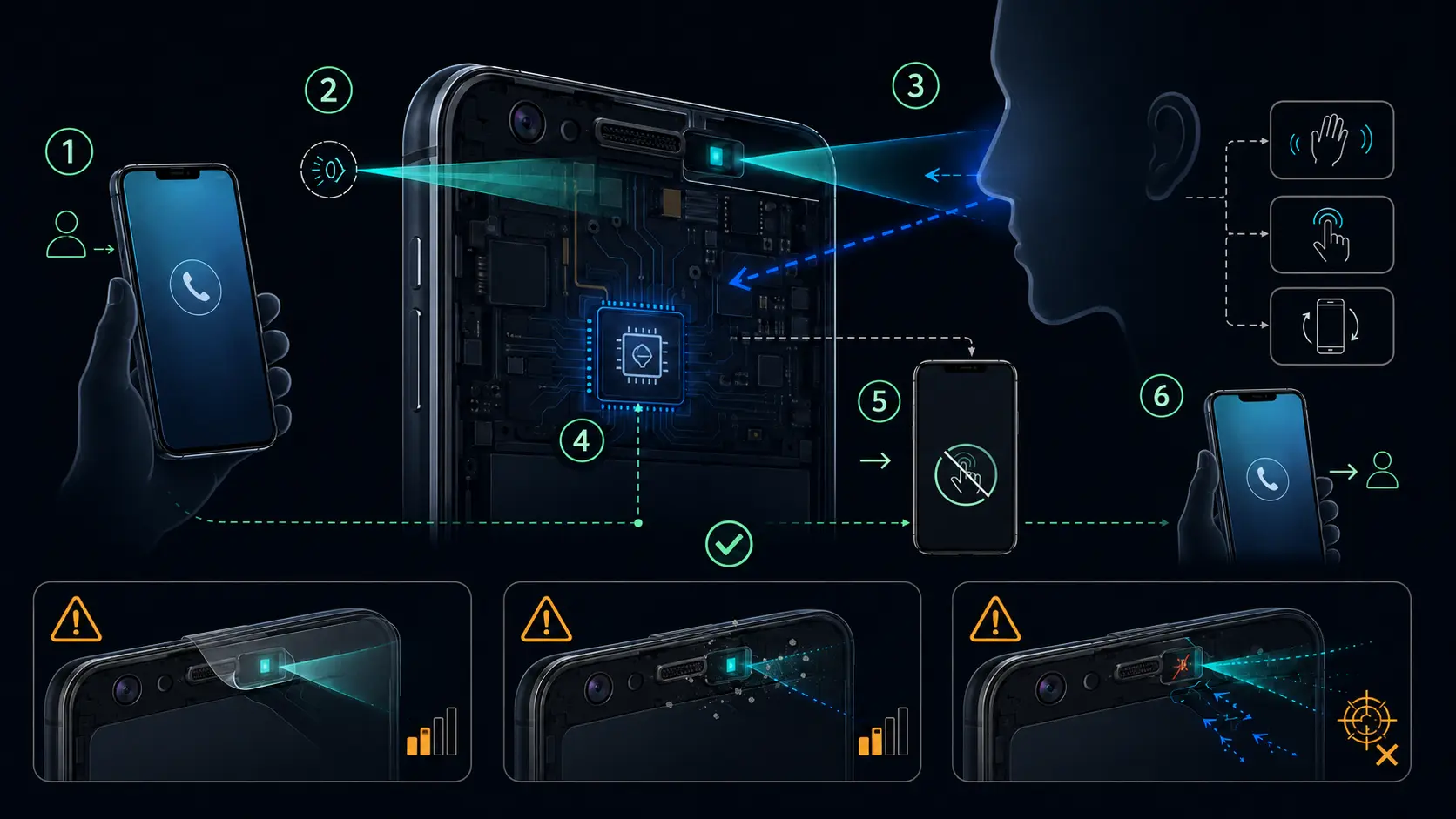
The sensor tells the phone when something is close to the front glass. During a call, that “something” is usually your face. Android then turns the screen off and ignores touch input so your ear doesn’t become a touchscreen accessory.
How it works
Most Android phones use an infrared proximity sensor near the earpiece or front camera area. It sends out infrared light and checks how much bounces back. If enough light returns, the phone decides an object is near. When the reflection drops, it reports far again.
Android’s own sensor documentation is a little more flexible than many people expect. Most proximity sensors return distance in centimeters, but some only return near and far. In normal phone-call behavior, near/far is all Android really needs.
A few phones don’t use a dedicated infrared part in the old obvious way. Some rely on under-display sensors or virtual proximity behavior that combines other sensors and software. This saves space near the top bezel, but it can be more sensitive to screen protectors, dirt, glass damage, and firmware bugs.
Where it sits
On older phones with a visible top bezel, it usually sits beside the earpiece speaker, front camera, and ambient light sensor. You may not see it because it sits behind a dark window in the glass.
On newer punch-hole and nearly bezel-free phones, the sensor may sit under the display or behind a less obvious area of the front glass. That makes exact placement harder to guess. If you’re testing by hand, cover the area around the earpiece and front camera first.
Signs of a bad proximity sensor
The screen stays on during calls. This is the classic symptom. You put the phone to your ear and your cheek starts pressing buttons.
The screen stays black after you move the phone away. You finish a call and have to press the power button because the display doesn’t wake by itself.
The screen turns off while you’re using the phone. That can happen when the sensor is stuck in the near state because something is blocking it.
Pocket touches get worse. This part isn’t the only defense against pocket input, but if it misreads constantly, accidental touches become more likely.
Quick test during a call
Call voicemail or another number where you won’t annoy anyone. During the call, cover the area near the earpiece with your palm.
The screen should turn off quickly. Remove your hand, and it should turn back on within about a second. If the screen takes several seconds, doesn’t respond, or flickers between on and off, the sensor needs attention.
Simple. Annoyingly useful.
Better diagnostic tests
On Samsung Galaxy phones, try *#0*# in the stock Phone app and look for the sensor test. Samsung Members > Diagnostics is the more user-friendly route and should be your first choice if you don’t like service menus.
On Xiaomi, Redmi, and POCO phones, enter *#*#6484#*#* or *#*#64663#*#* to open CIT mode. Xiaomi support pages also recommend removing cases and protectors, cleaning the top edge of the phone, updating software, and using hardware detection when touch or sensor-related features misbehave.
On other Android phones, use Sensor Test, Sensors Multitool, or DevCheck. Open the proximity reading, wave your hand over the top of the phone, and watch whether the value changes. Some phones show centimeters. Others jump between 0 and a maximum value, which just means near and far.
If the value never changes, the sensor is blocked, disabled, badly calibrated, or dead.
Some older guides recommend Proximity Sensor Reset. I wouldn’t make that the first move. Use it only after the basic checks, and don’t expect a third-party calibration app to fix a sensor that the phone can’t read at all.
Fix the common stuff first
Clean the top of the screen. Finger oil, dust, makeup, lint, and dried residue can block the sensor window. Use a clean microfiber cloth and pay attention to the earpiece area.
Remove the screen protector. This is the biggest cause on phones with under-display or hidden proximity sensors. A protector can be too thick, too dark near the sensor area, or slightly misaligned. Test the phone bare before blaming the motherboard.
Remove the case. Flip covers, raised lips, and badly cut cases can interfere with the top edge of the display.
Restart the phone. Sensor drivers can get stuck, especially after long uptime or right after a system update.
Update the software. Proximity behavior is partly firmware. A major platform update, such as Android 17 on Pixels first and later Android 17 builds from other OEMs, can change sensor behavior because the vendor layer controls the hardware.
Check call settings. Some Xiaomi builds expose proximity behavior under call settings. The exact path changes, but older MIUI-style paths used Settings > Apps > System app settings > Call settings > Incoming call settings > Proximity sensor.
Calibration and virtual sensors
Some diagnostic menus include proximity calibration. Xiaomi CIT and older OnePlus factory modes are the usual examples. Run calibration only when the menu clearly offers it and the phone is sitting flat, clean, and uncovered.
Virtual proximity sensors are trickier. If the phone estimates proximity using software, there may not be a physical part to replace. In that case, firmware updates matter more than repair. A factory reset can clear bad calibration state, but it should be a last step after backup.
When it is hardware
If the sensor value never changes in diagnostics after cleaning, removing accessories, restarting, updating, and testing in Safe Mode, hardware failure is likely.
Drops can crack the sensor area or shift the display. Water can corrode the sensor or flex cable. Repairs can leave a connector loose or cover the sensor with the wrong adhesive. None of that is fixed by another sensor app.
When a phone has a separate infrared proximity part, the component itself is small, but labor drives the repair cost. On phones with hidden or display-integrated sensing, the repair can be tied to the screen assembly.
If repair isn’t worth it, you can still work around the problem. Use the power button to wake the screen during calls, enable accidental touch protection if your phone has it, and avoid flip cases that cover the sensor area. It’s not perfect, but it keeps the phone usable.
Sources
Turn symptoms into a clearer picture of your phone's health.
runcheck connects battery, heat, signal, and storage patterns so you can see what is really dragging a phone down.