
What Android memory pressure is and how to fix it
Memory pressure happens when Android runs short on RAM and starts killing apps. Learn how to spot it, what causes it, and what actually helps.
Memory pressure is Android choosing what to sacrifice. When there isn’t enough RAM for everything, the system starts closing less important processes so the phone can keep running.
That’s why a browser reloads when you switch back to it. It’s why the keyboard may vanish for a second, why your music app may restart, or why a game closes when you answer a message. The phone didn’t forget what you were doing for fun. It needed the memory.
Free RAM is not the goal on Android. Android tries to use memory for useful things, like keeping apps warm. The problem starts when there isn’t enough room left to switch tasks smoothly.
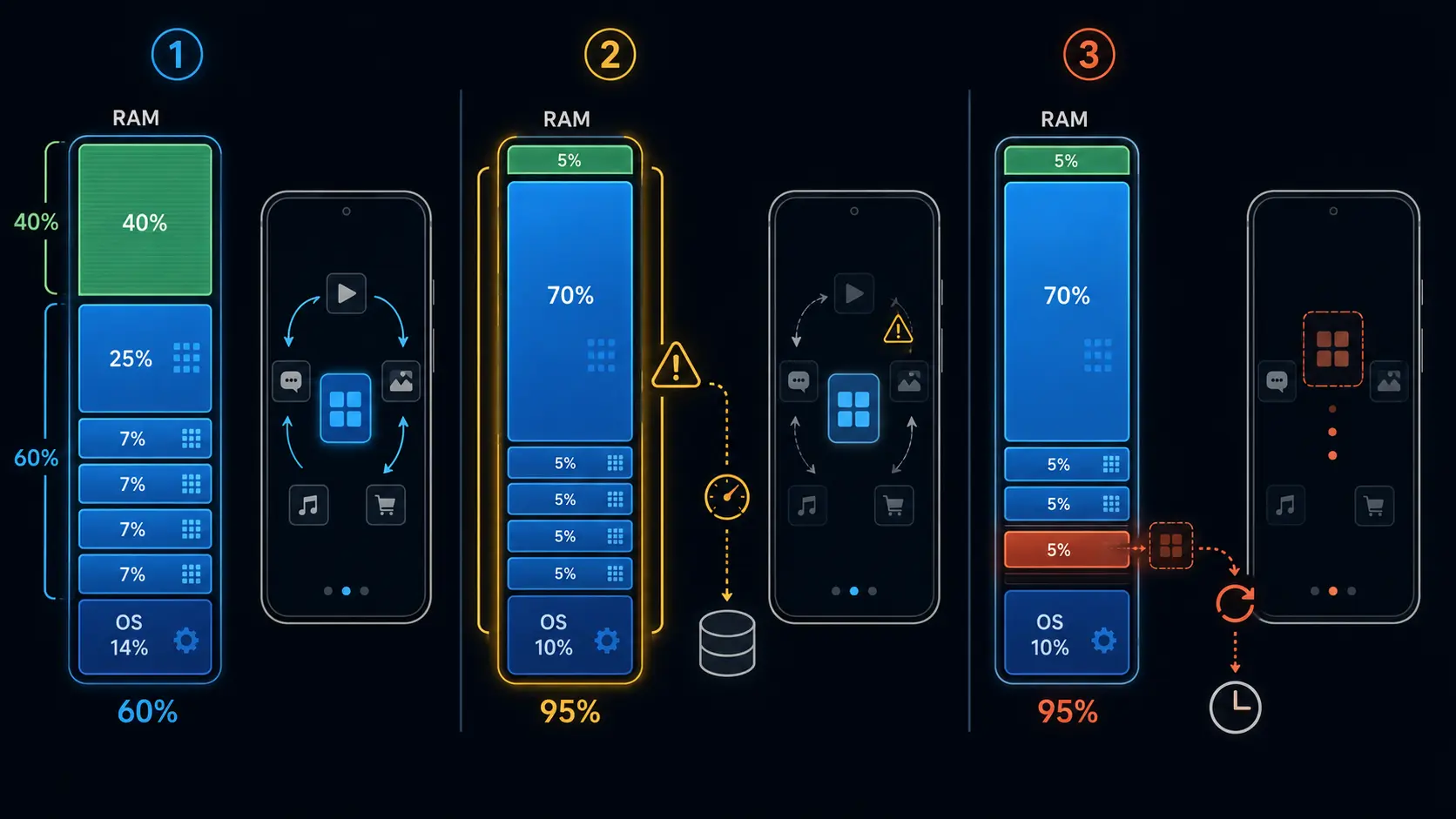
What Android does under pressure
Android uses the Low Memory Killer Daemon, or lmkd, to watch memory pressure. When RAM gets tight, lmkd ranks processes and kills the ones Android can most afford to lose. Background apps usually go first. Foreground apps are supposed to be protected, but under severe pressure they can still be killed or crash.
Android 10 added support for using kernel pressure stall information, usually called PSI, so lmkd can react to real memory stalls rather than only simple free-memory thresholds. Older systems leaned more on the in-kernel low memory killer driver. That old driver was removed from the upstream Linux kernel starting with 4.12, which is why modern Android relies on userspace lmkd.
There’s no need to remember all of that. The practical version is simpler: if Android keeps killing apps you were just using, you’re probably seeing memory pressure.
Signs you’re running out of usable RAM
The clearest sign is app reloads. Open Chrome, load a page, switch to Messages, then switch back. If Chrome reloads the page from scratch every time, Android probably killed it while it was in the background.
Other clues are less obvious. The launcher redraws when you go home. The keyboard disappears mid-message. Spotify stops after opening the camera. A game restarts after you check a notification. One of these once in a while is normal. All of them all day is not.
You can check active memory from Developer Options. Go to Settings > About phone and tap Build number seven times, then open Settings > System > Developer options > Running services. The exact path varies by brand, but the screen shows running processes and current RAM use.
Samsung users can also check Settings > Device care > Memory. Xiaomi, Redmi, and POCO phones often show Memory Extension settings, though that feature is more about virtual RAM than a clean view of real memory pressure.
Don’t obsess over one number. A phone sitting with only a few hundred MB free isn’t automatically broken. Android is supposed to cache aggressively. What matters is behavior: constant reloads, lost app state, and foreground apps closing.
Why it happens
RAM capacity is the obvious cause. A handset with 4 GB can still handle calls, messages, maps, and light browsing in 2026, but it has little margin. Android, Google Play services, the launcher, keyboard, messaging apps, and background sync can eat a large share before you open anything heavy.
Modern apps are also bigger than they used to be. A browser with several tabs, Instagram or TikTok, a navigation app, and a music app can push low-RAM hardware into churn. Models with 6 GB have more room. An 8 GB handset is comfortable for most people. Above 12 GB, the gains are usually smaller unless you’re gaming heavily or using desktop-style multitasking.
Background services matter more than people think. Messaging apps keep connections open. Fitness apps sync. Email apps poll. VPNs inspect traffic. Launchers and widgets sit in memory because they need to be ready. None of these is wrong on its own. Stack enough of them and the phone feels cramped.
Major OS upgrades can make this more noticeable. Android 17 has started on supported Pixel phones first, with other eligible devices following later through 2026. After a major update, give the phone time to finish app updates and background cleanup before judging performance. But if 4 GB already felt tight on Android 14 or 15, Android 17 won’t magically make the device roomier.
What actually helps
Don’t swipe away every app all day. It feels productive, but Android already knows how to reclaim memory. Force-closing everything often means apps restart their background services moments later, using more CPU and battery than if you had left them alone.
Limit background activity instead. Open Settings > Apps, choose an app, then look for Battery or App battery usage. Set rarely used apps to Restricted if they don’t need instant notifications. Good candidates are shopping apps, games, travel apps, food delivery apps, news apps, and social apps that don’t need to ping you in real time.
Uninstall unused apps. Disabling background activity helps, but removing an app is cleaner. Fewer apps means fewer services, fewer push registrations, fewer update jobs, and less storage pressure.
Keep storage free. Low RAM and full storage are different problems, but they often show up together on older phones. If internal storage is above 85 to 90 percent, clean it up. A phone with tight RAM and almost-full storage feels worse than either problem alone.
Use Lite or web versions when they make sense. A lightweight browser session can be easier on a low-RAM phone than a full social app with background video, notifications, widgets, and cached media.
Disable or reduce animations if the phone feels laggy. In Developer Options, set Window animation scale, Transition animation scale, and Animator duration scale to 0.5x or off. This doesn’t add RAM. It just reduces the waiting between taps, and sometimes that is enough to make a cramped phone tolerable.
Virtual RAM isn’t real RAM
Samsung calls it RAM Plus. Xiaomi calls it Memory Extension. OnePlus and other brands use similar names. The idea is simple: the phone uses part of internal storage as extra swap-like memory.
It can help keep more apps from being killed on low-RAM devices. It doesn’t make storage as fast as physical RAM. UFS storage is fast for storage, but RAM is in a different league. On low-RAM devices, virtual RAM may reduce reloads. On an 8 GB or 12 GB phone, the difference is often hard to feel.
There is also a tradeoff. More virtual RAM means less internal storage available, and constant storage writes are not free. I wouldn’t turn it off blindly, but I also wouldn’t buy a phone because the spec sheet says 8 GB + 8 GB virtual RAM. The first number matters far more.
When the answer is a new phone
If you’ve restricted background apps, removed junk, freed storage, and the phone still reloads everything, the hardware may simply be undersized for your use.
For basic use, 4 GB still works if you’re patient and keep the phone clean. For normal multitasking, 6 GB is the practical floor now. For a phone you plan to keep several years, 8 GB is the safer buy. Heavy users, gamers, and people who keep many apps active at once benefit from 12 GB.
A factory reset can make memory pressure disappear for a while because the phone has fewer apps and cleaner background state. Then you reinstall your apps, sign back into everything, and the pressure comes back. That’s not failure. That’s the phone showing its limit.
Sources
Turn symptoms into a clearer picture of your phone's health.
runcheck connects battery, heat, signal, and storage patterns so you can see what is really dragging a phone down.