
What is thermal throttling and how does it affect your phone?
Android's built-in thermal slowdown protects your phone from heat. Learn the Android thermal levels, thermal headroom, common triggers, and how to reduce throttling safely.
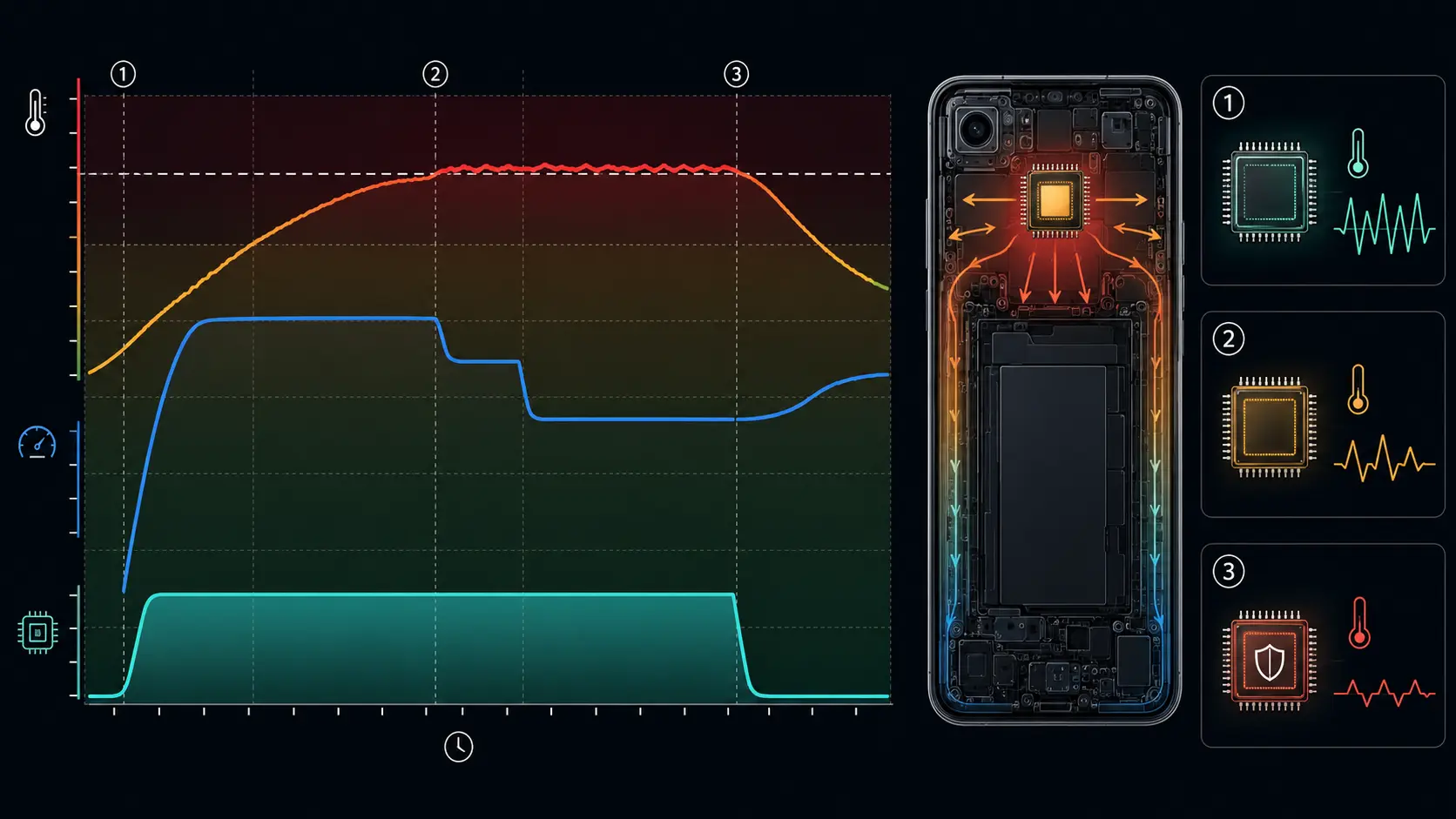
Why does a fast phone suddenly feel slow halfway through a game, video call, or camera session? Most of the time, it is thermal throttling. The device is hot, so Android and the manufacturer reduce performance before heat becomes a safety problem.
What thermal throttling means
It is controlled slowdown. The phone reduces CPU speed, GPU speed, display brightness, charging power, radio activity, or other power-heavy behavior to bring temperature down.
It is not a bug by itself. It is the phone choosing a lower performance level so the battery, display, modem, and SoC stay inside the device maker’s safety limits.
You notice the trade-off as dropped frames, slower app launches, dimmed brightness, camera limits, charging that slows down, or a game that starts smoothly and then gets choppy. Android does not ask permission. It just does it.
Android’s thermal levels
Android has had public thermal status APIs since Android 10. Apps can read simplified severity levels through PowerManager on supported devices:
- None: Not under thermal throttling.
- Light: Light throttling where normal use is not affected much.
- Moderate: Some throttling, usually still usable.
- Severe: Heavy throttling where performance is clearly affected.
- Critical: The platform has already reduced power heavily.
- Emergency: Key components may be shutting down because of thermal conditions.
- Shutdown: The device needs to shut down immediately.
These labels are standardized. The temperature that triggers each label is not. A Pixel, a Galaxy S Ultra, a Xiaomi gaming phone, and a budget Motorola can map heat to those levels differently because their cooling systems, batteries, frames, displays, and safety margins are different.
This is why exact temperature advice gets messy. One phone may throttle at a battery reading that another phone tolerates during charging.
Thermal headroom is the better early warning
Thermal status tells you the current stage. Thermal headroom tells you how close the current workload is to severe throttling.
Android’s game performance guidance describes thermal headroom as a value from 0.0 to 1.0, where 1.0 means the device is at or near THERMAL_STATUS_SEVERE for that workload. Games can use that signal to lower frame rate or visual quality before the player feels the slowdown.
There is one catch: device support varies. Some phones return limited data, some return NaN if queried too often, and some map headroom differently because their thermal design is different. Good diagnostics should treat thermal headroom as a signal, not as a universal thermometer.
runcheck uses Android’s public thermal signals where the device exposes them. That matters because normal apps should not rely on private sysfs temperature files for user-facing thermal status.
What triggers throttling
Long gaming sessions are the obvious case. A 3D game can push CPU, GPU, display, speakers, network, and haptics at the same time.
Camera use is another one. 4K or 8K recording, HDR processing, long video clips, and direct sunlight can heat a phone quickly. Camera apps may reduce quality or stop recording when the phone gets too warm.
Navigation is slower but sneaky. The screen stays on, GPS runs, the modem downloads map data, and the phone may sit in a warm car mount. Add direct sunlight through a windshield and throttling arrives faster.
Charging during active use is the easy mistake. Fast charging alone creates heat. Add a game, video call, hotspot, or camera recording, and the phone has less room to cool.
Weak signal can also push the modem. A phone fighting for 5G in a low-coverage area can heat up even when the screen is off.
Major system updates can create temporary heat too. Android 17 has just reached supported Pixel devices first, while other eligible Android phones will get their manufacturer builds later. After any major update, app optimization and background sync can make a phone warm for a day or two.
Thermal throttling versus battery throttling
This kind of throttling is temporary. Stop the workload, let the phone cool, and performance returns.
Battery-related performance management is different. As batteries age, internal resistance rises and peak power delivery gets worse. Some phones reduce charging voltage, charging speed, or other behavior to keep an aging battery stable. Google, for example, documents Battery health assistance on Pixel 6a and later, with staged battery voltage adjustments from 200 charge cycles onward on supported models.
That is not the same thing as a game getting slow after 20 minutes. One is heat under load. The other is battery aging management.
The fix is different too. Heat needs cooling and lower workload. A degraded battery needs replacement or more conservative charging habits.
How to tell it is happening
The most obvious sign is performance that gets worse during a session. A game starts at 60fps, then falls. The camera starts recording fine, then warns about heat. The screen dims even though you didn’t touch brightness. Charging says it is paused or slows dramatically.
You may also notice the heat location. Heat near the camera area often points to the SoC. Heat in the center of the back points more toward the battery or wireless charging coil. Heat at the USB-C port suggests cable, charger, or charging-circuit stress.
Apps that read Android thermal status can make this less vague. A status moving from None to Light to Moderate during a game is expected. Severe, Critical, or repeated shutdown-level events during normal use are not.
How to reduce throttling
Lower the workload before the phone has to do it for you.
In games, reduce frame rate first. It is often the biggest win. Then lower resolution, shadows, effects, and texture quality. A medium preset at a stable frame rate usually feels better than an ultra preset that throttles after ten minutes.
Remove the case during heavy use. The back panel and frame are part of the cooling system.
Use Wi-Fi instead of mobile data when signal is weak. Poor cellular coverage can turn a normal session into a hot one.
Avoid direct sunlight. A phone can throttle on a sunny car mount even if the workload is not extreme.
Don’t fast charge during heavy use. Unplug, or use a slower charger if you need to keep playing.
Keep apps and the system updated. Device makers tune thermal behavior over time, and a bad app update can also create heat until patched.
When throttling points to a bigger problem
Throttling during a demanding game is normal. Throttling while typing a message on a cool desk is not.
If the phone gets hot while idle, check battery usage, signal strength, recent app installs, and Safe Mode. If it still gets hot in Safe Mode, or if the battery is swollen, drains suddenly, or shuts down with charge remaining, treat it as a hardware or battery issue.
Below 80% battery health is a common replacement threshold on phones that expose the number. Pixel Battery health labels capacity below 80% as Reduced on supported models, and Samsung Members labels battery status as Normal, Weak, or Bad. Those labels are more useful than guessing from heat alone.
Bottom line
Your phone’s thermal safety system is not the enemy. You can reduce it by lowering workload, improving cooling, avoiding hot environments, and not mixing fast charging with heavy use. But if throttling happens during light use, don’t ignore it. That is when the problem may be an app, weak signal, charger, or worn battery.
Sources
Turn symptoms into a clearer picture of your phone's health.
runcheck connects battery, heat, signal, and storage patterns so you can see what is really dragging a phone down.